Module 1 · Lesson 01
What Grok Bot is
Grok Bot gives you AI teammates with names, jobs and a cloud computer. Learn how they differ from a chat box and what this course covers.
Before this module
Day 1
Day 1, first hour. Before building anything, the stream stopped to explain what Grok Bot is.
Two people from the product team created a Bot from scratch and asked it out loud for a form with two questions about coffee. The form was built in front of everyone, click by click, on the Bot's own computer.
Keep reading
Then a second Bot drafted an email with that data without anyone asking. A rule written into its settings stopped it before it sent. And not everything worked: the form's QR code errored out because the link was not public.
This module comes out of that hour.
Day 2
Day 2, as the stream opened. "The agents sold us on the pivot," was how Matt put it.
The previous day's guests had warned that a pop-up in San Francisco needs licences and permits. The Bots, working overnight, reached the same conclusion. Half an hour at the whiteboard produced the new idea: everyone uploads a Bot they already use, the game gives it stats and an ability, and pits it against someone else's team.
Keep reading
Soon after, in the first workshop, a Bot went into a real airline's booking site on its own computer to compare it with the made-up airline in the demo. Nobody had set up any integration for it.
What a Bot is, what computer it uses and what it can do without asking you first: that is what the lessons in this module explain.
Day 2 · 0:11:08The agents sell them a pivot
Day 2 · 0:51:05Serena tries Southwest's site on her computer
Contents3
- Explain how a Bot differs from a chat box you open once per task
- Describe where a Bot does its work and why it keeps going when your laptop is closed
- Install Grok Bot, sign in and reach your first teammate suggestion
A chat forgets, a Bot stays
If you have used ChatGPT or Grok, you know the Routine Work a Bot does on its own, on a schedule or when something happens in another tool. See in the glossary →. You open a new chat, explain the background again, get a draft, and then copy it into the tool where the real work happens. The next day you start from zero.
That works for one-off questions. It breaks down for work that repeats, that spans several apps, or that takes longer than you want to sit and watch. Grok Bot An AI teammate with a name, a job and its own conversation. It works on a computer in the cloud, even when you're away. See in the glossary → is built for that kind of work, and it asks you to think about AI in a different way.
A name, a job and its own conversation
A Bot is a teammate you keep
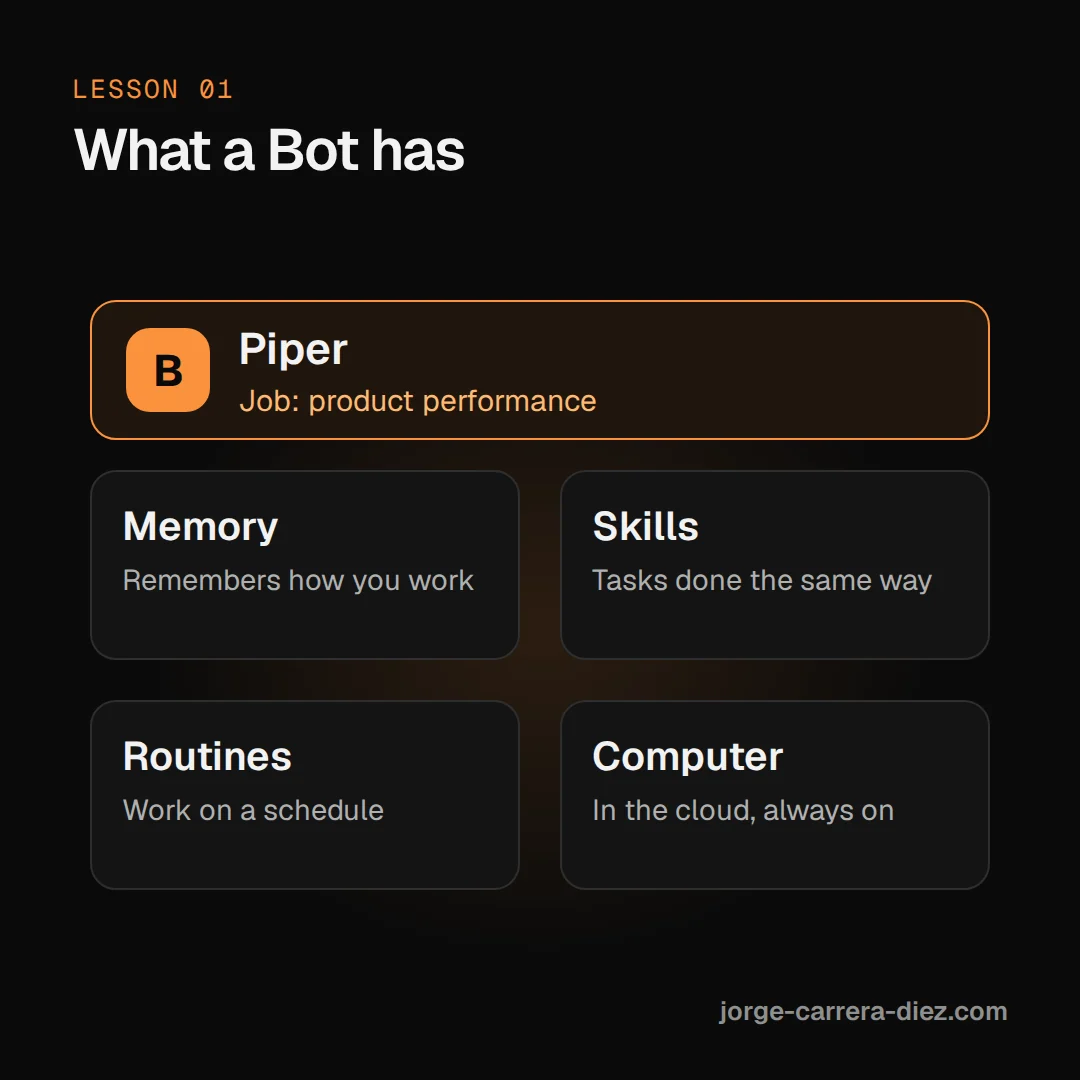
A Bot is an AI teammate that stays with you. It has a name, a job, its own conversation, and working context that grows over time. You work with it by sending messages, the way you would message a colleague.
Think of a new colleague who sits at the next desk. You do not hire a new person for every task. You give one person a clear area of responsibility, and each week they need less explanation. A Bot works the same way: you create one for a job, such as weekly reports or inbox triage, and you keep coming back to it.
The xAI team sums it up as working with teammates instead of opening one chat per task.
Day 1 · 0:31:36Teammates instead of one chat per task
A named Bot keeps its memory, preferences and files from one session to the next instead of resetting every time. Its context builds up. Lesson 05 covers what a Bot remembers.
It works on a computer in the cloud
A chat box can only give you text. A Bot has a cloud computer: a machine that runs in Cursor's cloud, not on your laptop, with a web browser, its own files and folders, and a terminal (a window where you type commands). On that computer the Bot can open websites, work with files and use your tools, so the task finishes in the real app instead of as a draft you paste somewhere.
Where a service offers a connector (a ready-made link to an app, such as a CRM The tool where a team tracks customers and sales deals. See in the glossary →, the tool a sales team uses to track customers), the Bot uses it. For everything else it uses the computer the way a person would, which is called computer use. Lesson 02 explains the computer in detail.
It keeps working when you close your laptop
Because the work runs on the cloud computer, closing the app, your laptop or your phone does not stop a task that is already running. You can hand something off in the evening and read the result in the morning.
The same Bots and conversations sync across the desktop app (macOS, Windows, Linux) and the mobile app (iPhone and Android).
It asks before doing something that matters
A Bot takes on multi-step work and keeps you updated in the conversation. When an action needs your approval, it stops and asks. Lesson 04 covers approvals and how to set your own rules.
Several Bots can work together
You can run more than one Bot. Each has its own role and conversation, and they can message each other and hand work over, so you are not the one copying information between tools. Module 4 covers teams of Bots.
How you get it
Grok Bot is included with every paid individual Cursor plan and with the Cursor Teams plan. You can also link an individual SuperGrok subscription. Usage resets weekly. The exact list of eligible plans changes, so check Plans and billing before you sign up.
What this course covers
The course has seven modules. Each lesson assumes only what earlier lessons taught.
- Fundamentals: what Grok Bot is, its computer, your first Bot and approvals.
- Teaching your Bot: memory, Skill Saved instructions to do a task the same way every time. All your Bots can use them. See in the glossary → (saved descriptions of how to do a task) and good context.
- Connecting it to your work: Connector A ready-made link between a Bot and a service such as Slack, Notion or GitHub. In the app they appear as Plugins. See in the glossary → and plugins, logins and credentials, and routines.
- Teams of Bots: one Bot per role, Bots working together, orchestrating a team and sharing Bots.
- Grok Bot for engineering: Cursor Cloud agent A Cursor coding agent that works on its own computer on a copy of the code and returns the change for review. See in the glossary →, verification and automations.
- Real use cases: product and data, founders and sales, and running a business with Bots.
- Expert level: cost and performance, and limits.
Install the app and create your first Bot
- Open the Grok Bot downloads page and download the version for your computer. On a Mac, drag Grok Bot to Applications.
- Open the app and choose Get started on the welcome screen.
- Finish signing in with your Cursor account in the browser window that opens, then return to the app.
- Answer the short tour. It introduces Bots, the shared computer and routines (work that runs on a schedule), and asks which tools you use. Your answers only shape suggestions. They do not connect or change those tools.
- Wait while the computer is set up in the background. The last step opens Meet a future teammate, where you create your first Bot. Lesson 3 walks through that.
Full install instructions for every platform are in Get started.
Three Bots, one job each
In a live demo, the xAI team showed three Bots, each with one job. Data Dan handled data, Slide Sonya handled a slide deck, and Email Ethan drafted emails.
The presenter asked Ethan to draft an email about coffee data they had collected. Ethan did not have that data, so it messaged Data Dan to ask for it, without being told to. Each Bot owns one area, and they pass context to each other when a task needs it.
Day 1 · 0:52:11Email Ethan asks Data Dan for context
A good first handoff has the same shape. It is a real task that spans a few tools and has a clear finish line. Here is one for someone in sales:
Pull this week's pipeline review list from our CRM. Skip anyone already in an active sequence. Research the top five accounts across the web and Slack, pull the right contacts, draft outreach in my voice, and leave me drafts to approve by tomorrow morning.The "pipeline" is the list of possible deals, an "active sequence" is a series of sales emails already going out to that person, and Slack is a team chat app. The request says what to do, where to work, what context to use and what finished work looks like. You do not need to write something this ambitious on day one. Lesson 03 shows how to build up to it.
First-day mistakes
- Opening a new Bot for every task. Each one starts with no context and never improves. Fix: create one Bot per job and keep returning to it.
- Creating a single "General Helper" for everything. A vague job gives the Bot less guidance and makes its saved context harder to reuse. Fix: give each Bot one clear job.
- Keeping your laptop open so the Bot can finish. The work already runs in the cloud. Fix: close the lid and check the result later.
- Expecting only a text answer. You miss the point of the computer. Fix: ask for finished work in the real tool, such as a draft saved in your email or a spreadsheet with the data.
- Treating memory as the source of truth. A Bot can hold stale facts. Fix: for important decisions, ask it to check the current source.
A Bot in a few lines
- A Bot is a long-lived AI teammate with a name, a job and its own conversation.
- Create one Bot per job and come back to it, so its context builds up.
- Bots work on a cloud computer, and the work keeps going when your laptop is closed.
- Bots ask for approval before consequential actions.
- Next, in lesson 02, you will see how the Bots' computer works.
Read more in the official Grok Bot overview.